> ## Documentation Index
> Fetch the complete documentation index at: https://docs.tyrionurl.com/llms.txt
> Use this file to discover all available pages before exploring further.
# Password Protection
> Restrict access to your short links with a passphrase — only visitors who know the password get through.
## What is Password Protection?
Password-protected links require visitors to enter a passphrase on a gate page before being redirected to the destination URL. TyrionURL handles the gate page automatically — no additional setup needed.
This is useful whenever you want to share a link with a specific, vetted audience rather than the open internet.
***
## Feature Overview
| Aspect | Details |
| ----------------------------- | -------------------------------------------------- |
| **Gate page** | Hosted by TyrionURL at the short link URL |
| **Password entry** | Visitor submits the passphrase before redirect |
| **Verification** | Handled server-side via `/api/url/verify-password` |
| **Configurable at** | Link creation time (Advanced Settings) |
| **Changeable after creation** | TODO: Needs Product Verification |
***
## When to Use Password Protection
* **Pre-launch pages** — Share a coming-soon landing page with beta users before public launch
* **Internal documents** — Share a link to internal content without requiring account creation from recipients
* **Exclusive offers** — Gate a discount page behind a code communicated in a newsletter or event
* **Private portfolios** — Share sensitive design work or proposals with specific clients
* **Media embargoes** — Give journalists access to a press release before a public announcement date
***
## Setting Up a Password-Protected Link
In your [Dashboard](https://tyrionurl.com/dashboard), enter the URL you want to protect into the shortener input field.
Click **Advanced Settings** to expand the options panel.
Toggle **Password Protect** to on. A password input field will appear.
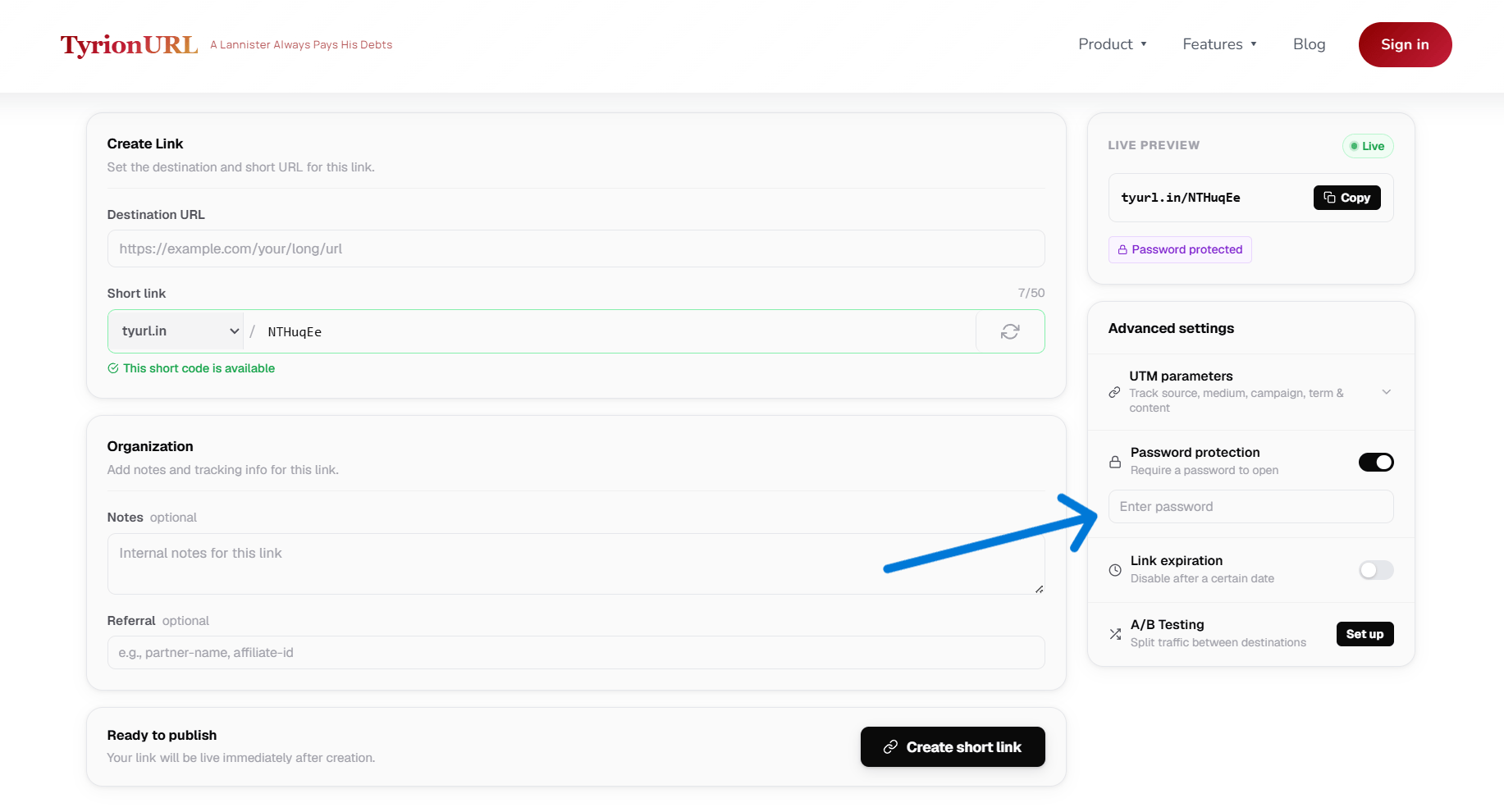 Enter a password in the field. Choose something that:
* Is easy for your intended audience to type
* Is not easily guessable by the general public
* Can be communicated separately from the link itself
TyrionURL does not display your password again after link creation. Store it securely before saving.
Click **Shorten**. Your password-protected link is created.
Send the short link via your primary channel and communicate the password through a separate channel (e.g., link in email, password in a follow-up SMS).
***
## The Visitor Experience
When a visitor opens a password-protected short link:
1. They land on a **TyrionURL password gate page** — a clean form asking for the passphrase
2. They enter the password and click **Submit**
3. If correct, they are **immediately redirected** to the destination URL
4. If incorrect, an error message prompts them to try again
{/*
Enter a password in the field. Choose something that:
* Is easy for your intended audience to type
* Is not easily guessable by the general public
* Can be communicated separately from the link itself
TyrionURL does not display your password again after link creation. Store it securely before saving.
Click **Shorten**. Your password-protected link is created.
Send the short link via your primary channel and communicate the password through a separate channel (e.g., link in email, password in a follow-up SMS).
***
## The Visitor Experience
When a visitor opens a password-protected short link:
1. They land on a **TyrionURL password gate page** — a clean form asking for the passphrase
2. They enter the password and click **Submit**
3. If correct, they are **immediately redirected** to the destination URL
4. If incorrect, an error message prompts them to try again
{/*
 */}
***
## Best Practices
Communicate the password through a different channel than the link — this prevents the link from being useful to anyone who intercepts just the URL.
Use a password that's short and typeable, especially if visitors may be entering it on mobile.
Combine password protection with a [custom alias](/url-shortening/custom-aliases) so the link itself is professional-looking even though it's gated.
If the intended audience is large, consider whether a more scalable access control mechanism is appropriate.
***
## Common Mistakes
**Putting the password in the same message as the link** — This defeats the purpose. Always separate the two communication vectors.
**Forgetting the password after creation** — Store it in a password manager or shared note immediately after creating the link.
**Using complex passwords** — Visitors typing a password on mobile are likely to make mistakes. Short, lowercase, memorable passwords work best.
***
## Related Features
Give password-protected links a readable name.
Share files securely without requiring a download.
Back to the shortening feature overview.
See who accessed your protected links.
*/}
***
## Best Practices
Communicate the password through a different channel than the link — this prevents the link from being useful to anyone who intercepts just the URL.
Use a password that's short and typeable, especially if visitors may be entering it on mobile.
Combine password protection with a [custom alias](/url-shortening/custom-aliases) so the link itself is professional-looking even though it's gated.
If the intended audience is large, consider whether a more scalable access control mechanism is appropriate.
***
## Common Mistakes
**Putting the password in the same message as the link** — This defeats the purpose. Always separate the two communication vectors.
**Forgetting the password after creation** — Store it in a password manager or shared note immediately after creating the link.
**Using complex passwords** — Visitors typing a password on mobile are likely to make mistakes. Short, lowercase, memorable passwords work best.
***
## Related Features
Give password-protected links a readable name.
Share files securely without requiring a download.
Back to the shortening feature overview.
See who accessed your protected links.