> ## Documentation Index
> Fetch the complete documentation index at: https://docs.tyrionurl.com/llms.txt
> Use this file to discover all available pages before exploring further.
# Campaigns
> Group multiple short links under a single campaign to measure aggregate performance across channels.
## What are Campaigns?
A Campaign is a named container that groups related short links together. Instead of viewing each link's performance in isolation, campaigns let you measure the combined impact of an entire marketing effort — across emails, social posts, paid ads, and influencer channels — from a single view.
**Example:** A product launch campaign might include:
* `/launch-email` — link in the announcement newsletter
* `/launch-ig` — link in the Instagram bio
* `/launch-twitter` — link shared on Twitter/X
* `/launch-ad` — link used in the paid ad campaign
From the campaign view, you see total clicks across all four.
***
## Feature Overview
| Capability | Details |
| ---------------------- | ----------------------------------------------- |
| **Campaign creation** | Name and create a campaign group |
| **Link assignment** | Add short links to a campaign |
| **Aggregate tracking** | View combined clicks across all campaign links |
| **Status monitoring** | Track whether a campaign is active or concluded |
***
## When to Use Campaigns
* Multi-channel product launches
* Seasonal promotions (Black Friday, end-of-year sales)
* Influencer marketing activations where each influencer gets a unique link
* A/B testing across channels (one link per channel, all in one campaign)
* Event promotions where the same event is promoted in multiple places
***
## Creating a Campaign
From your dashboard sidebar, click **Campaigns**.
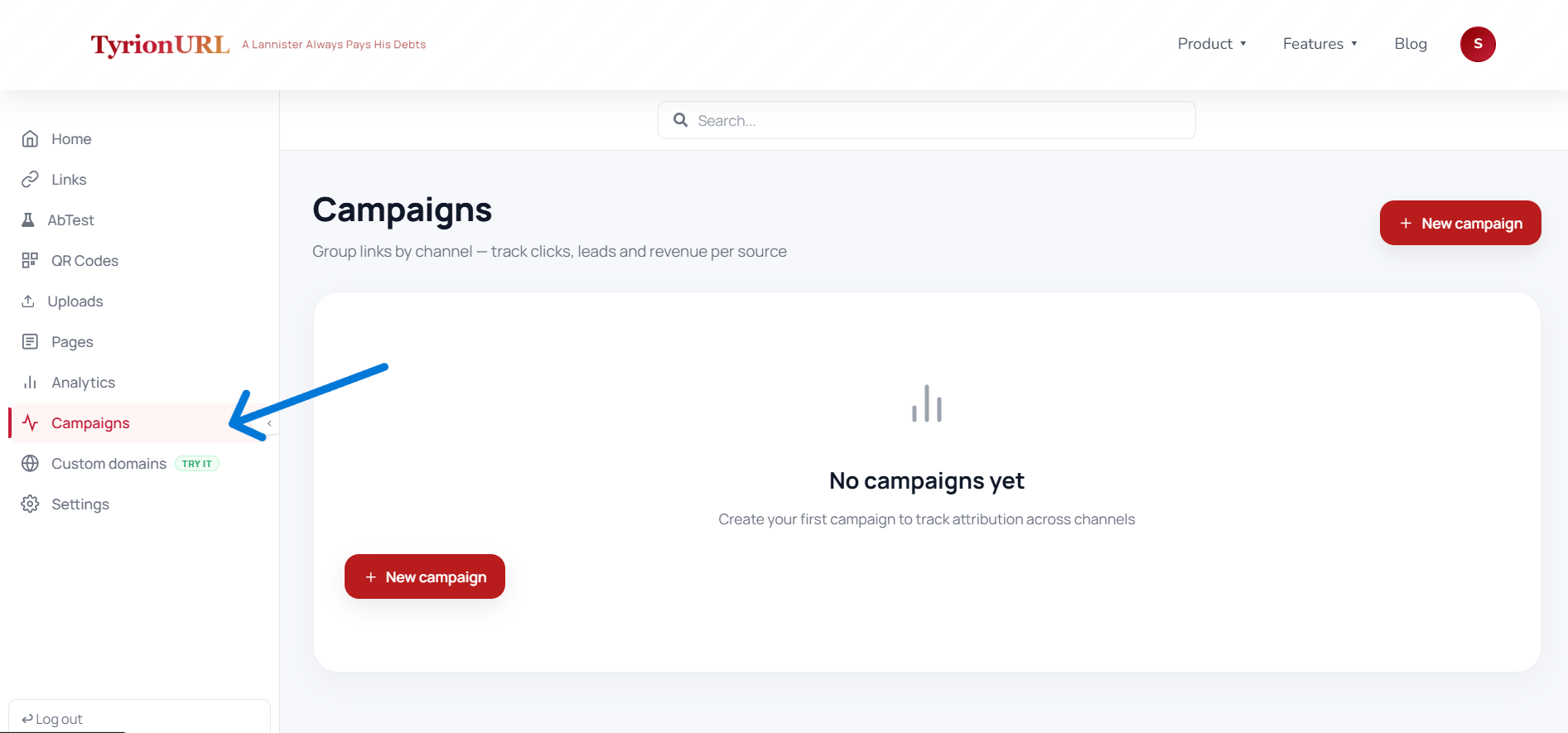 Click the **Create Campaign** button in the top-right corner.
Enter a descriptive campaign name. Good names reference the promotion, channel, or time period.
**Examples:**
* `Summer Sale 2024`
* `Product Launch — June`
* `Q4 Email Series`
Click **Save**. The campaign is now available to attach links to.
***
## Adding Links to a Campaign
You can assign a link to a campaign in two ways:
### At Link Creation Time (Recommended)
When creating a new short link, select a campaign from the **Campaign** dropdown in the link creation panel.
### After Link Creation
1. Open the link list and find the link you want to assign
2. Click the `...` action menu on the link
3. Select **Assign to Campaign**
4. Choose the campaign from the dropdown
{/*
Click the **Create Campaign** button in the top-right corner.
Enter a descriptive campaign name. Good names reference the promotion, channel, or time period.
**Examples:**
* `Summer Sale 2024`
* `Product Launch — June`
* `Q4 Email Series`
Click **Save**. The campaign is now available to attach links to.
***
## Adding Links to a Campaign
You can assign a link to a campaign in two ways:
### At Link Creation Time (Recommended)
When creating a new short link, select a campaign from the **Campaign** dropdown in the link creation panel.
### After Link Creation
1. Open the link list and find the link you want to assign
2. Click the `...` action menu on the link
3. Select **Assign to Campaign**
4. Choose the campaign from the dropdown
{/*
 */}
***
## Viewing Campaign Performance
In the Campaigns section, each campaign card shows:
| Metric | Description |
| ----------------- | ------------------------------------------------- |
| **Campaign Name** | The name you gave the campaign |
| **Total Links** | Number of short links grouped under this campaign |
| **Total Clicks** | Aggregate clicks across all links |
| **Status** | Active or concluded |
| **Date Created** | When the campaign was created |
Click on a campaign to see a breakdown of performance per individual link within that campaign.
***
## Campaign Status
Each campaign has a status that can be used for filtering and reporting:
| Status | Meaning |
| ------------- | ------------------------------------------------ |
| **Active** | Campaign is live and links are being distributed |
| **Concluded** | Campaign has ended; historical data is retained |
Use the `/api/campaigns/:id/status` endpoint to update campaign status programmatically.
***
## Best Practices
Create the campaign *before* creating links so you can assign them at the time of creation rather than retroactively.
Use a consistent naming convention — include the channel, promotion type, and date (e.g., `Email — Black Friday 2024`).
Give each channel or creative its own unique short link within a campaign so you can compare channel performance.
Mark campaigns as "Concluded" when a promotion ends to keep your active campaign list clean.
***
## Common Mistakes
**One link for all channels** — Using the same short link everywhere means you can't compare channel performance. Create one link per channel or placement.
**Forgetting to assign links** — Links not attached to a campaign won't appear in campaign reporting. Double-check assignments when creating links for active promotions.
***
## Related Pages
Per-link and aggregate performance data.
Creating the links that go into campaigns.
Naming links by channel within a campaign.
Split traffic across variants within a campaign.
*/}
***
## Viewing Campaign Performance
In the Campaigns section, each campaign card shows:
| Metric | Description |
| ----------------- | ------------------------------------------------- |
| **Campaign Name** | The name you gave the campaign |
| **Total Links** | Number of short links grouped under this campaign |
| **Total Clicks** | Aggregate clicks across all links |
| **Status** | Active or concluded |
| **Date Created** | When the campaign was created |
Click on a campaign to see a breakdown of performance per individual link within that campaign.
***
## Campaign Status
Each campaign has a status that can be used for filtering and reporting:
| Status | Meaning |
| ------------- | ------------------------------------------------ |
| **Active** | Campaign is live and links are being distributed |
| **Concluded** | Campaign has ended; historical data is retained |
Use the `/api/campaigns/:id/status` endpoint to update campaign status programmatically.
***
## Best Practices
Create the campaign *before* creating links so you can assign them at the time of creation rather than retroactively.
Use a consistent naming convention — include the channel, promotion type, and date (e.g., `Email — Black Friday 2024`).
Give each channel or creative its own unique short link within a campaign so you can compare channel performance.
Mark campaigns as "Concluded" when a promotion ends to keep your active campaign list clean.
***
## Common Mistakes
**One link for all channels** — Using the same short link everywhere means you can't compare channel performance. Create one link per channel or placement.
**Forgetting to assign links** — Links not attached to a campaign won't appear in campaign reporting. Double-check assignments when creating links for active promotions.
***
## Related Pages
Per-link and aggregate performance data.
Creating the links that go into campaigns.
Naming links by channel within a campaign.
Split traffic across variants within a campaign.