> ## Documentation Index
> Fetch the complete documentation index at: https://docs.tyrionurl.com/llms.txt
> Use this file to discover all available pages before exploring further.
# Creating Your First Short Link
> A detailed walkthrough of every option available when creating a short link in TyrionURL.
## Overview
Creating a short link in TyrionURL takes seconds for the basic case — and gives you full control over aliases, password protection, and A/B testing when you need them. This guide covers every option available during link creation.
***
## Basic Link Creation
Log in and open your [Dashboard](https://tyrionurl.com/dashboard). The URL shortener input is prominently placed at the top.
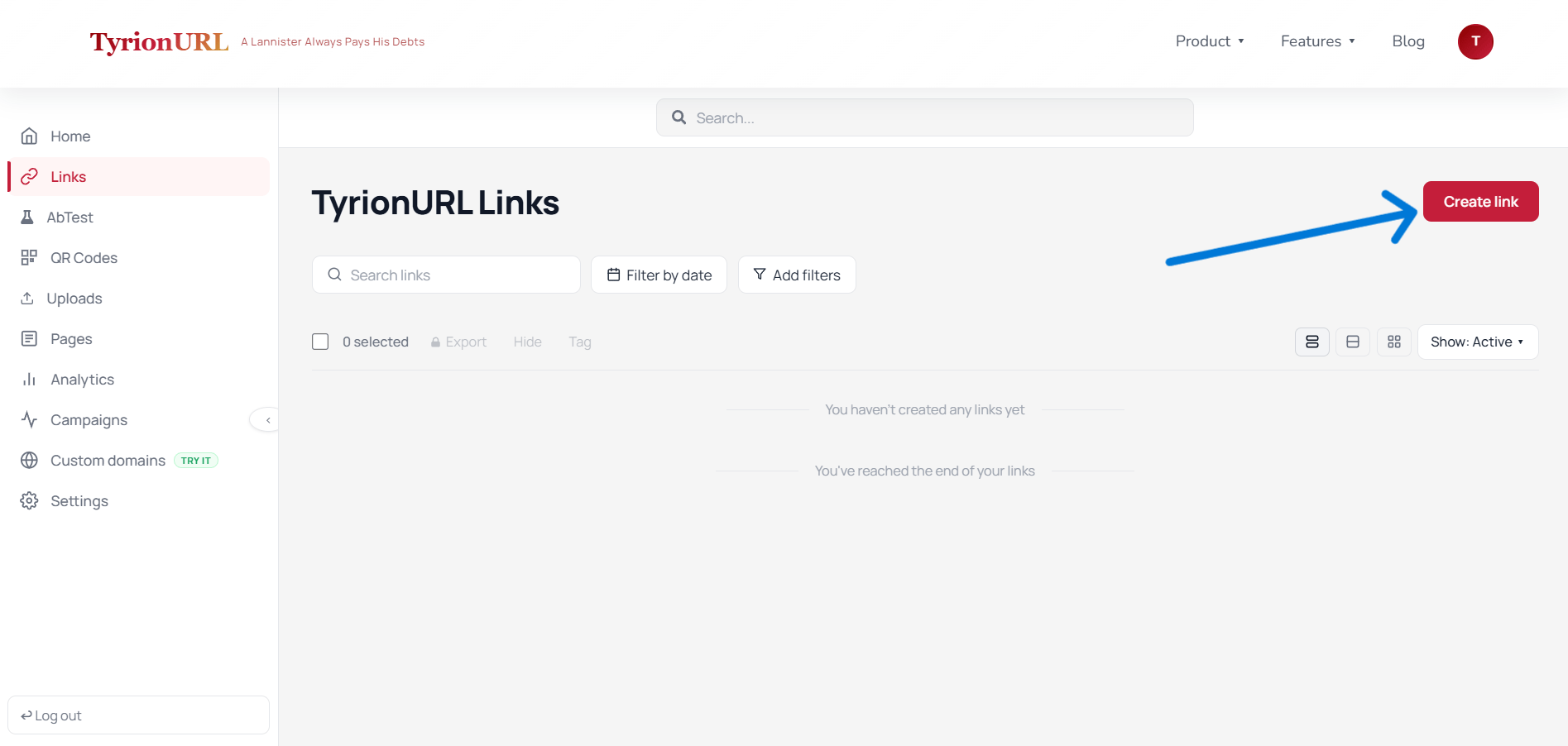 Paste the full URL you want to shorten. TyrionURL validates the URL format before proceeding.
Make sure your URL starts with `https://` or `http://`. Bare domains like `example.com` without a protocol may not validate correctly.
* **Click Shorten immediately** to generate a link with a random short code.
* **Open Advanced Settings** to configure a custom alias, password, or other options before generating.
***
## Advanced Settings
Click the **Advanced Settings** toggle to reveal additional configuration options.
### Custom Alias
Instead of a randomly generated code like `/a8f2k`, you can set a human-readable slug.
| Setting | Details |
| -------------------- | ---------------------------------------- |
| **Input** | Alphanumeric characters and hyphens only |
| **Uniqueness** | Must be unique across TyrionURL |
| **Availability** | Checked in real time as you type |
| **Account Required** | Yes — registered users only |
**Example:**
```
Input URL: https://yourstore.com/products/blue-running-shoes-v2
Custom alias: /blue-shoes
Result: t.tyrionurl.com/blue-shoes
```
→ Full details: [Custom Aliases](/url-shortening/custom-aliases)
***
### Password Protection
Add a password that visitors must enter before they're redirected to the destination.
Toggle **Password Protect** in the Advanced Settings panel.
Enter the password you want to assign to this link. Store it somewhere safe — TyrionURL does not display it again after link creation.
Send the short link to your intended audience and communicate the password through a separate channel.
**What visitors see:** A password entry page at `t.tyrionurl.com/[alias]` before being redirected.
→ Full details: [Password Protection](/url-shortening/passwords)
***
## After Link Creation
Once your link is generated, you'll see the link card in your dashboard with these available actions:
| Action | Description |
| ------------- | ------------------------------------------ |
| **Copy** | Copy the short link to clipboard |
| **Analytics** | Open the analytics view for this link |
| **Edit** | Modify the alias, destination, or settings |
| **A/B Test** | Set up traffic splitting on this link |
| **Delete** | Permanently remove the link |
| **QR Code** | Generate a QR code for this link |
Paste the full URL you want to shorten. TyrionURL validates the URL format before proceeding.
Make sure your URL starts with `https://` or `http://`. Bare domains like `example.com` without a protocol may not validate correctly.
* **Click Shorten immediately** to generate a link with a random short code.
* **Open Advanced Settings** to configure a custom alias, password, or other options before generating.
***
## Advanced Settings
Click the **Advanced Settings** toggle to reveal additional configuration options.
### Custom Alias
Instead of a randomly generated code like `/a8f2k`, you can set a human-readable slug.
| Setting | Details |
| -------------------- | ---------------------------------------- |
| **Input** | Alphanumeric characters and hyphens only |
| **Uniqueness** | Must be unique across TyrionURL |
| **Availability** | Checked in real time as you type |
| **Account Required** | Yes — registered users only |
**Example:**
```
Input URL: https://yourstore.com/products/blue-running-shoes-v2
Custom alias: /blue-shoes
Result: t.tyrionurl.com/blue-shoes
```
→ Full details: [Custom Aliases](/url-shortening/custom-aliases)
***
### Password Protection
Add a password that visitors must enter before they're redirected to the destination.
Toggle **Password Protect** in the Advanced Settings panel.
Enter the password you want to assign to this link. Store it somewhere safe — TyrionURL does not display it again after link creation.
Send the short link to your intended audience and communicate the password through a separate channel.
**What visitors see:** A password entry page at `t.tyrionurl.com/[alias]` before being redirected.
→ Full details: [Password Protection](/url-shortening/passwords)
***
## After Link Creation
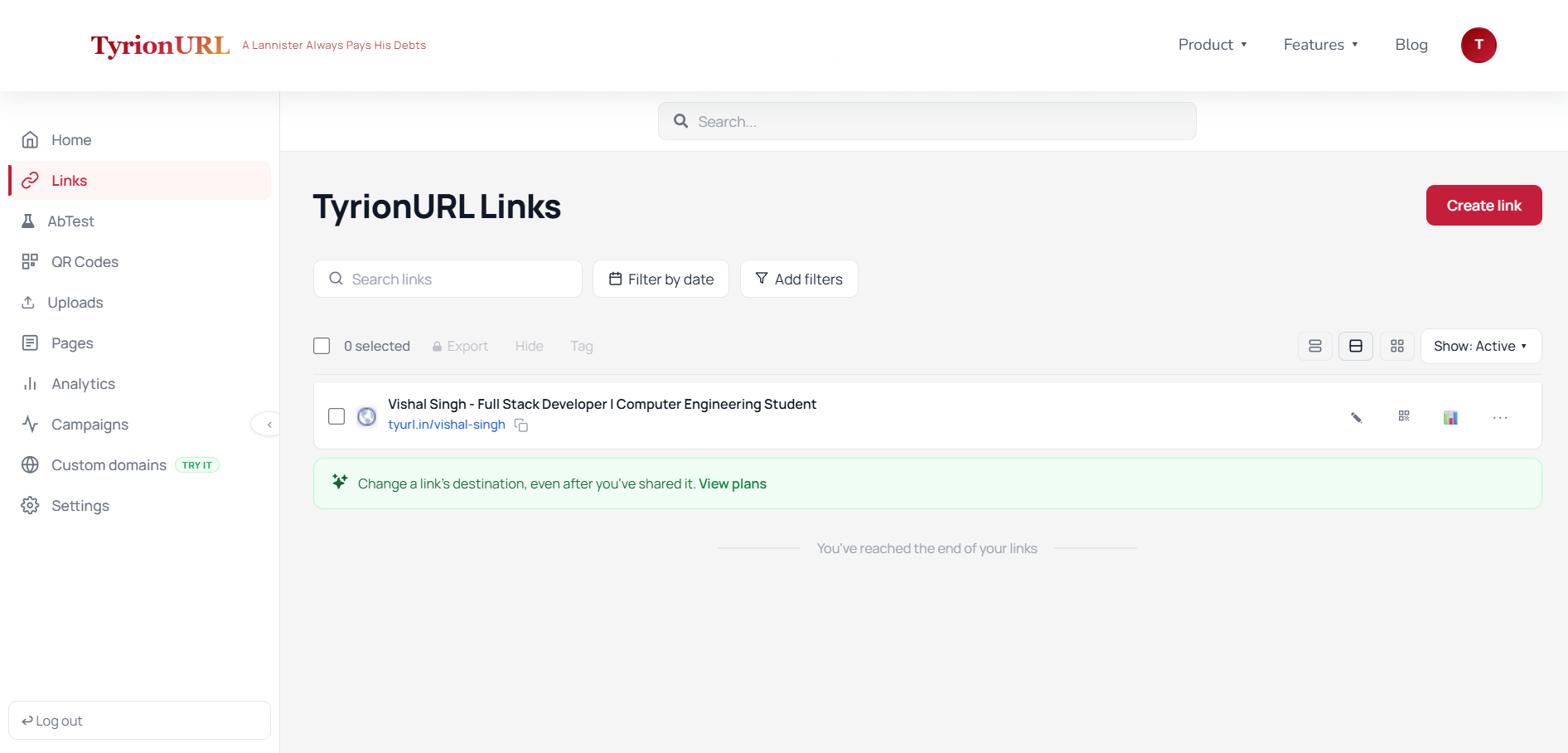
Once your link is generated, you'll see the link card in your dashboard with these available actions:
| Action | Description |
| ------------- | ------------------------------------------ |
| **Copy** | Copy the short link to clipboard |
| **Analytics** | Open the analytics view for this link |
| **Edit** | Modify the alias, destination, or settings |
| **A/B Test** | Set up traffic splitting on this link |
| **Delete** | Permanently remove the link |
| **QR Code** | Generate a QR code for this link |
 ***
## Best Practices
Use custom aliases for any link you'll share publicly — it builds trust and improves click-through rates.
Keep aliases short (2–4 words, hyphen-separated) so they're easy to type and remember.
Use password protection for internal documents, pre-launch pages, or exclusive content.
Always test your short link in a browser before distributing it at scale.
***
## Common Mistakes
**Alias already taken** — If your chosen alias is unavailable, TyrionURL will indicate this in real time. Try a variation or add a date/suffix.
**Forgetting the password** — There is no "forgot password" for link passwords. If you lose it, you'll need to recreate the link with a new password.
**Sharing before testing** — Always click your own short link to verify it redirects correctly before distributing it widely.
***
## Related Features
Make links readable and brandable.
Restrict access with a passphrase.
Split traffic to test multiple destinations.
Track performance after you share.
***
## Best Practices
Use custom aliases for any link you'll share publicly — it builds trust and improves click-through rates.
Keep aliases short (2–4 words, hyphen-separated) so they're easy to type and remember.
Use password protection for internal documents, pre-launch pages, or exclusive content.
Always test your short link in a browser before distributing it at scale.
***
## Common Mistakes
**Alias already taken** — If your chosen alias is unavailable, TyrionURL will indicate this in real time. Try a variation or add a date/suffix.
**Forgetting the password** — There is no "forgot password" for link passwords. If you lose it, you'll need to recreate the link with a new password.
**Sharing before testing** — Always click your own short link to verify it redirects correctly before distributing it widely.
***
## Related Features
Make links readable and brandable.
Restrict access with a passphrase.
Split traffic to test multiple destinations.
Track performance after you share.