> ## Documentation Index
> Fetch the complete documentation index at: https://docs.tyrionurl.com/llms.txt
> Use this file to discover all available pages before exploring further.
# Navigating the Dashboard
> A complete tour of the TyrionURL dashboard — where everything lives and how to find it fast.
## Dashboard Overview
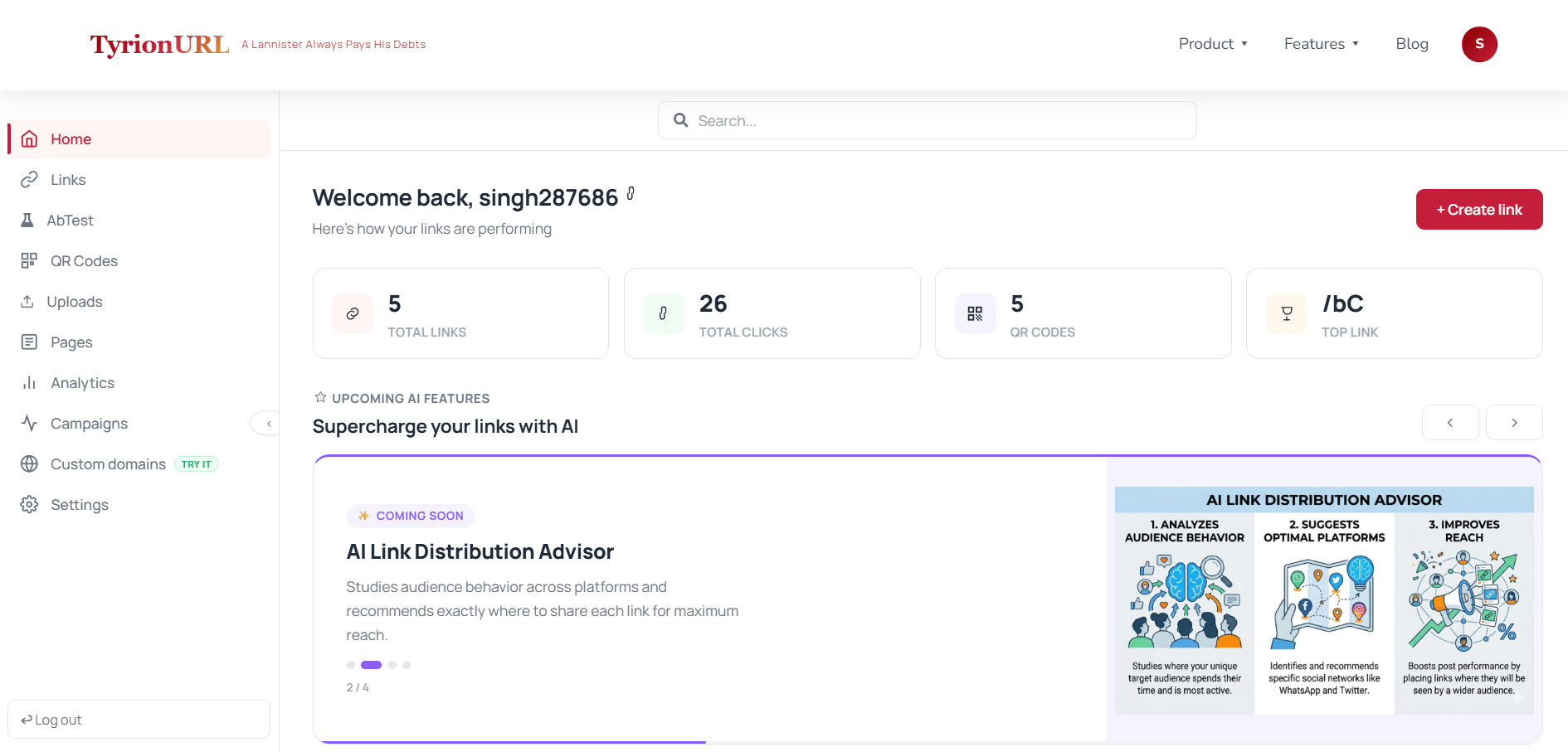
The TyrionURL dashboard is your central workspace for creating, managing, and analyzing all your links. This guide covers each section so you can navigate confidently.
 ***
## Main Navigation
The sidebar (or top navigation on mobile) gives you access to every major feature:
| Section | What You'll Find |
| ------------------ | ------------------------------------------- |
| **Dashboard** | Link list, URL shortener input, quick stats |
| **Analytics** | Per-link analytics and live traffic |
| **Bio Pages** | Bio page builder and preview |
| **QR Codes** | QR code generator |
| **Campaigns** | Campaign manager |
| **Custom Domains** | Domain management and DNS verification |
| **Uploads** | Secure document management |
| **Settings** | Account, API keys, preferences |
***
## The Link List
The core of your dashboard is the **link list** — a scrollable, searchable table of all your short links.
Each link card shows:
* **Short URL** with a quick-copy button
* **Destination URL** (truncated)
* **Total click count**
* **Date created**
* **Status** (active, password-protected, A/B test active)
### Searching and Filtering
***
## Main Navigation
The sidebar (or top navigation on mobile) gives you access to every major feature:
| Section | What You'll Find |
| ------------------ | ------------------------------------------- |
| **Dashboard** | Link list, URL shortener input, quick stats |
| **Analytics** | Per-link analytics and live traffic |
| **Bio Pages** | Bio page builder and preview |
| **QR Codes** | QR code generator |
| **Campaigns** | Campaign manager |
| **Custom Domains** | Domain management and DNS verification |
| **Uploads** | Secure document management |
| **Settings** | Account, API keys, preferences |
***
## The Link List
The core of your dashboard is the **link list** — a scrollable, searchable table of all your short links.
Each link card shows:
* **Short URL** with a quick-copy button
* **Destination URL** (truncated)
* **Total click count**
* **Date created**
* **Status** (active, password-protected, A/B test active)
### Searching and Filtering
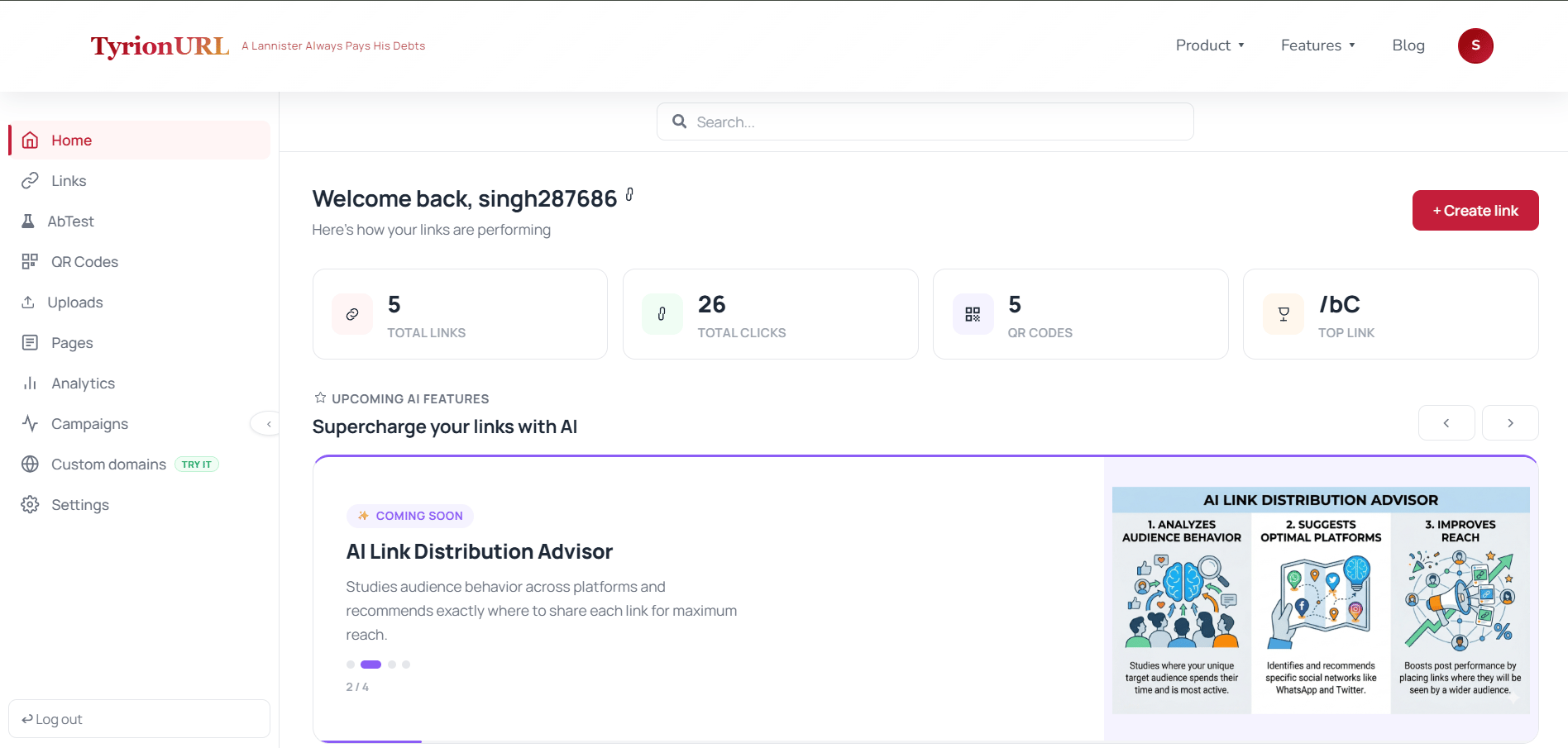 Use the search bar above the link list to filter by:
* Destination URL
* Custom alias or short code
* Campaign name
***
## Quick Stats
At the top of the dashboard, summary cards show your account-wide performance at a glance:
| Stat | Description |
| ------------------------------------ | -------------------------------------------------- |
| **Total Links** | Number of short links you've created |
| **Total Clicks** | Aggregate clicks across all links |
| **Active Campaigns** | Number of active campaign groups |
| **TODO: Needs Product Verification** | Additional stats may appear depending on your plan |
***
## Creating a Link from the Dashboard
The URL shortener input is always available at the top of the dashboard. Paste a URL and click **Shorten** to create a new link instantly — or click **Advanced** to configure options before generating.
→ See: [Creating Your First Short Link](/getting-started/first-link)
***
## Accessing Link Analytics
From any link in your list, click the link title or the **Analytics** icon to open that link's analytics view. This takes you to the full analytics dashboard for that specific link.
→ See: [Analytics Dashboard](/analytics/overview)
***
## Settings & Account Management
Click your **profile icon** or navigate to **Settings** to manage:
* **Account details** — name, email, password
* **API Keys** — generate and revoke A/B testing integration keys
* **Custom Domains** — add and verify branded domains
* **Billing** — TODO: Needs Product Verification
→ See: [Account Settings](/authentication/account-settings)
***
## Mobile Dashboard
TyrionURL is fully responsive. On mobile:
* The sidebar collapses into a bottom navigation bar
* Link cards stack vertically with swipe actions for copy and analytics
* The URL shortener remains accessible at the top
Use the search bar above the link list to filter by:
* Destination URL
* Custom alias or short code
* Campaign name
***
## Quick Stats
At the top of the dashboard, summary cards show your account-wide performance at a glance:
| Stat | Description |
| ------------------------------------ | -------------------------------------------------- |
| **Total Links** | Number of short links you've created |
| **Total Clicks** | Aggregate clicks across all links |
| **Active Campaigns** | Number of active campaign groups |
| **TODO: Needs Product Verification** | Additional stats may appear depending on your plan |
***
## Creating a Link from the Dashboard
The URL shortener input is always available at the top of the dashboard. Paste a URL and click **Shorten** to create a new link instantly — or click **Advanced** to configure options before generating.
→ See: [Creating Your First Short Link](/getting-started/first-link)
***
## Accessing Link Analytics
From any link in your list, click the link title or the **Analytics** icon to open that link's analytics view. This takes you to the full analytics dashboard for that specific link.
→ See: [Analytics Dashboard](/analytics/overview)
***
## Settings & Account Management
Click your **profile icon** or navigate to **Settings** to manage:
* **Account details** — name, email, password
* **API Keys** — generate and revoke A/B testing integration keys
* **Custom Domains** — add and verify branded domains
* **Billing** — TODO: Needs Product Verification
→ See: [Account Settings](/authentication/account-settings)
***
## Mobile Dashboard
TyrionURL is fully responsive. On mobile:
* The sidebar collapses into a bottom navigation bar
* Link cards stack vertically with swipe actions for copy and analytics
* The URL shortener remains accessible at the top
 ***
## Tips for Power Users
Use the search bar to quickly jump to any link by alias or destination domain.
Pin your most-used links to the top of the list for faster access (TODO: Needs Product Verification).
Open the live traffic monitor from the Analytics section when you're launching something to watch clicks arrive in real time.
Create campaigns before creating links so you can assign them during link creation rather than retroactively.
***
## Related Pages
Organizing links at scale.
Grouping links for aggregate tracking.
Deep-diving into link performance data.
Managing your account and API keys.
***
## Tips for Power Users
Use the search bar to quickly jump to any link by alias or destination domain.
Pin your most-used links to the top of the list for faster access (TODO: Needs Product Verification).
Open the live traffic monitor from the Analytics section when you're launching something to watch clicks arrive in real time.
Create campaigns before creating links so you can assign them during link creation rather than retroactively.
***
## Related Pages
Organizing links at scale.
Grouping links for aggregate tracking.
Deep-diving into link performance data.
Managing your account and API keys.